Many have found Zoom to be a powerful tool during these times of Covid. I've personally used it successfully for hosting business meetings, club meetings, artist demonstrations, Bible studies, and church sermons. I'm taking a class taught on Zoom's cousin Google Teams (not as good as Zoom!). This kind of conferencing software is pretty good for business meetings and presentations.
But Zoom is lousy at fellowship, at least until now. The fellowship I'm talking about is the chatting between people that nurtures ongoing friendships before and after club meetings, church services, etc. Introducing new people to friends. Shooting the breeze. Until now, Zoom tends to be "all business" without allowing personal time with people we know. We miss that a lot!

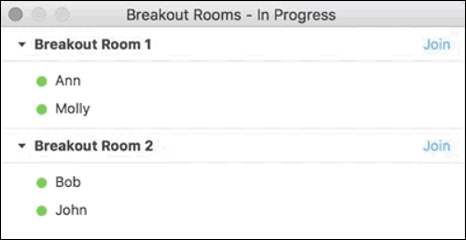
In mid-September 2020, Zoom introduced self-selected Breakout Rooms,which is a game-changer so far as enabling fellowship applications.
Previously, a host could schedule ahead of time who went to which breakout room (great for class settings), OR arbitrarily send chunks of the whole group to individual breakout rooms (quick discussions), OR manually move people around. The problem is that in many church or club meetings meetings, you never know who will show up or not. You need something more free flowing, intuitive -- the way groups of people form before and after a meeting to talk with their friends and catch up on life.
Here's how self-selecting breakout rooms might be used. For an expected group of 30 or 50 or 100 --
This is a new technology. You'll probably come up with new ways to adapt it to your own group's needs.
Using self-selected Breakout Rooms for fellowship is not perfect -- not nearly as good as face-to-face. But where that isn't possible, it's a work-around. Some of the downsides are:
To make Breakout Rooms work, the host must first enable them in the Settings webpage used to set up a Zoom room. You can find this by going to your Zoom Application "home" screen. Click on the gear icon at the upper right of the page.
Scroll down the page of settings. Here's what the "enable Breakout room "setting looks like when turned on.
Full instructions on how to upgrade your Zoom application can be found athttps://support.zoom.us/hc/en-us/articles/201362233-Upgrade-update-to-the-latest-version
If you already have the Zoom application installed on a desktop or laptop...
There are some instructions and YouTube videos on how to do this. Probably more will be produced. Here are some references available now.